Connect with AI Agents
Access your reports and metrics from Claude Code, Codex, or custom agents using MCP + OAuth 2.1. You control access and can revoke it anytime.
Quick Connect for MCP Agents
Connect with Claude Code, Codex, or any MCP-compatible agent in a few minutes. No manual client IDs required.
claude mcp add-json simplewearablereport '{"type":"http","url":"https://simplewearablereport.com/api/mcp"}' --scope userThen run /mcp inside Claude Code to authorize.
- Run the command above to register the MCP server.
- Verify the server with
claude mcp list. - In Claude Code, run
/mcpand authorize.
How the connection works
- Create an account and connect your Oura Ring.
- Configure your agent with the MCP URL and OAuth discovery.
- Your agent registers itself automatically and opens the OAuth prompt.
- Log in and approve access.
- Call tools like get_report or get_data.
We support loopback OAuth redirects for local tools when enabled.
Endpoints you'll need
MCP Server URL
https://simplewearablereport.com/api/mcp
OAuth Discovery
https://simplewearablereport.com/.well-known/oauth-authorization-server
Protected Resource
https://simplewearablereport.com/.well-known/oauth-protected-resource
What agents can do
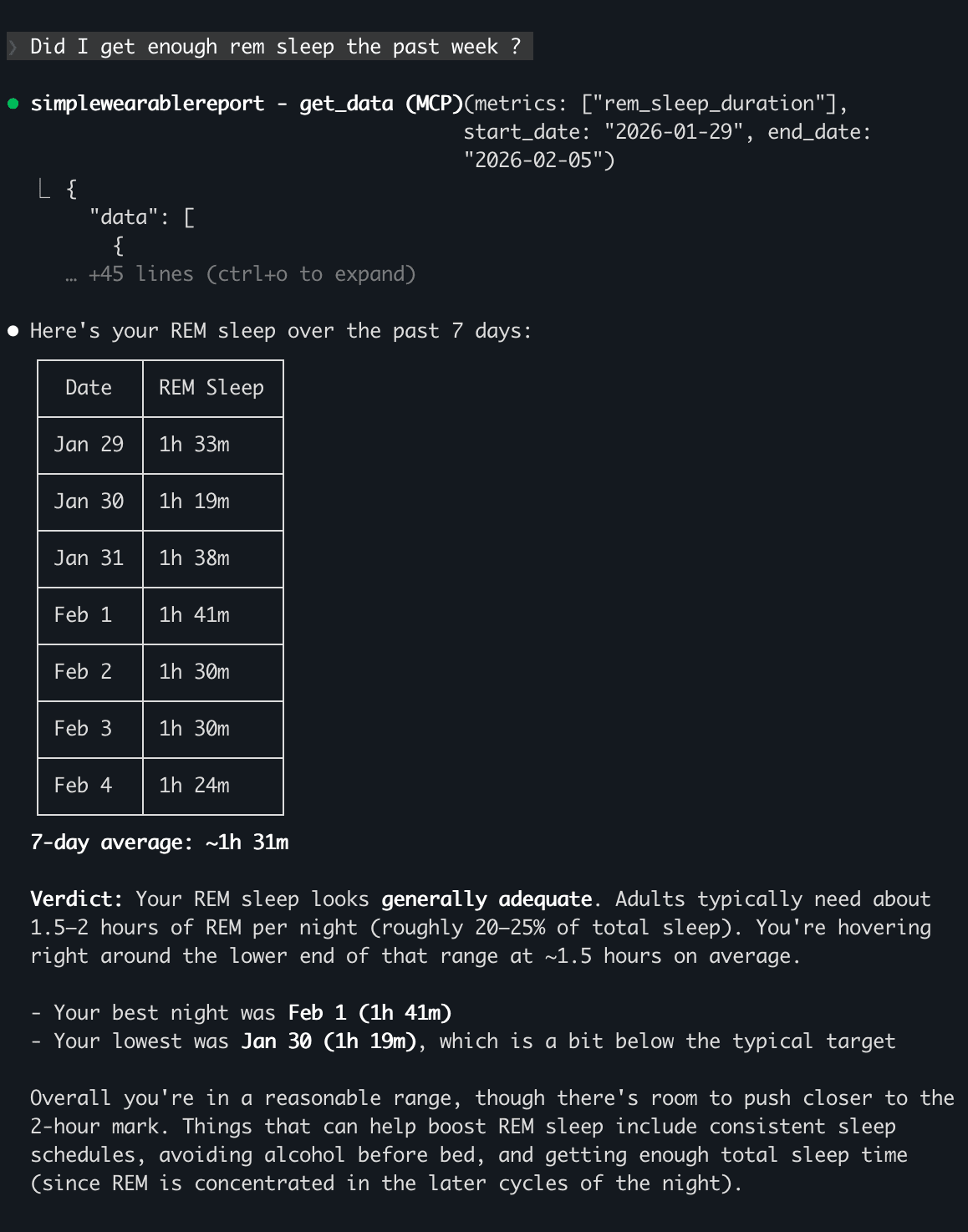
Here’s a real example of an MCP agent pulling your Oura metrics and summarizing the results.
Privacy & control
Access is granted through OAuth and can be revoked at any time. We never share your data without explicit consent.
Use this in ChatGPT (Developer Mode)
ChatGPT uses its own app setup flow. You don’t need to create a client ID in the dashboard.
- Enable Developer Mode in ChatGPT: Settings → Apps → Advanced settings → Developer Mode.
- Go to Settings → Apps → Create app.
- Enter: Name = Simple Wearable Report, MCP Server URL = https://simplewearablereport.com/api/mcp, then select OAuth and click I understand and want to continue → Create.
- Complete the OAuth login to authorize access.
- Use it in any ChatGPT chat by typing /simplewearablereport.
Revoke access
You can revoke access for all agents from your account settings. This will sign out any connected agents right away.
Tokens are short-lived (1 hour) for security, so access expires quickly even if you do nothing.
Open settings to revoke access →